CSV Import
The CSV Import tool lets you bring data into Kitted in bulk from a spreadsheet. Four types of data can be imported:
- Stock Items - create or update your stock catalogue
- Suppliers - create or update supplier records
- Stock Levels - set or adjust current stock quantities by location
- Assemblies / BOMs - create or replace bill-of-materials definitions
All four follow the same three-step process: choose the import type, upload a file to preview it, then confirm.
Step 1 - Choose type and download the template
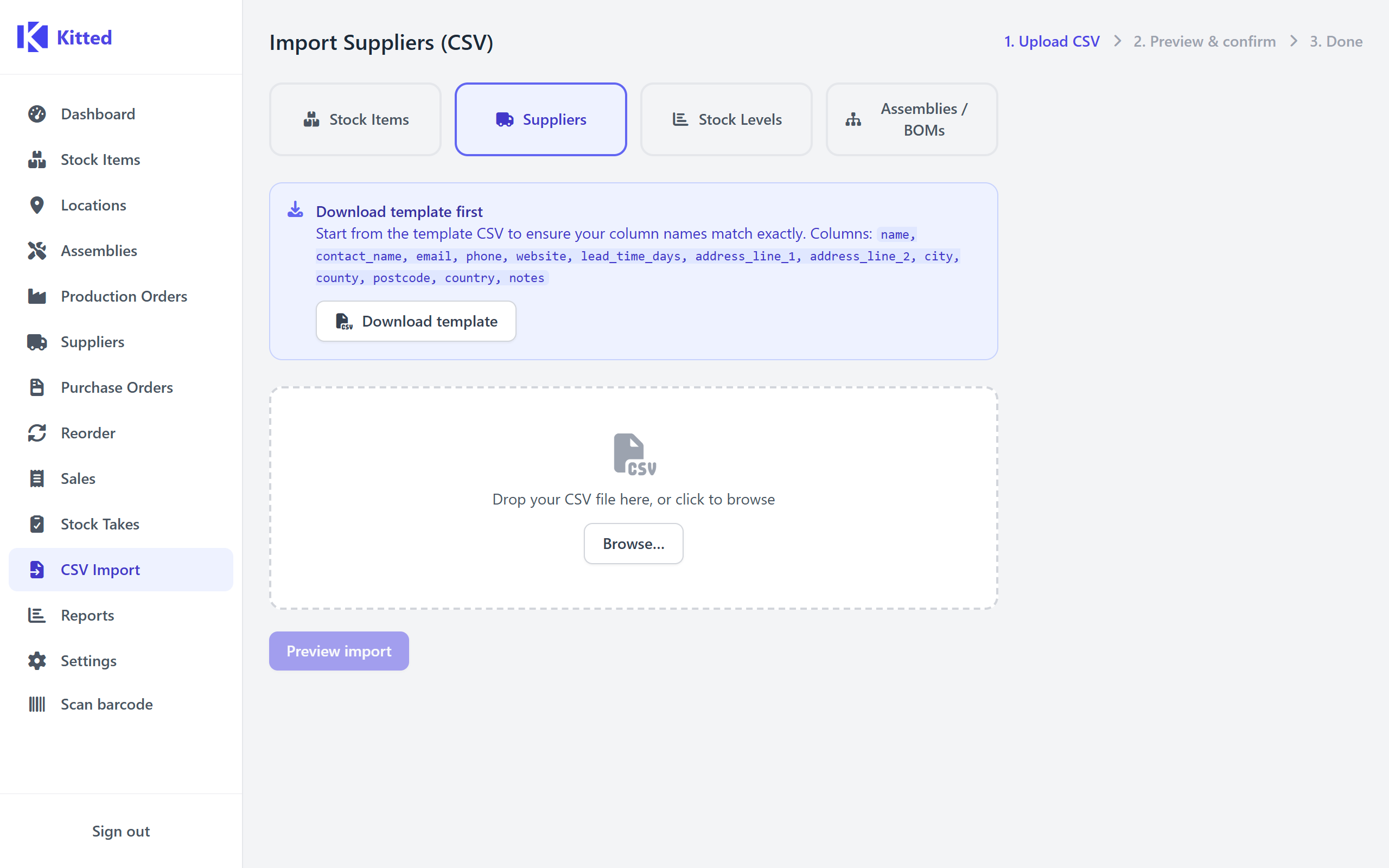
Navigate to CSV Import from the sidebar and select the type of data you want to import using the buttons at the top of the page. Before uploading your own file, click Download template to get a correctly-headed CSV file ready to fill in.
The file must have a header row matching the column names exactly (case-insensitive). Extra columns are ignored. The maximum file size is 2 MB.
Stock Items
Creates new stock items or updates existing ones.
Columns
| Column | Required | Notes |
|---|---|---|
name | Yes | Display name for the stock item. |
sku | No | Your internal stock-keeping unit code. Used for duplicate detection. |
unit_of_measure | No | Unit label (e.g. units, kg, m). Defaults to units if blank. |
cost_price | No | Cost price per unit. Must be a non-negative number if provided. |
sale_price | No | Sale price per unit. Must be a non-negative number if provided. |
min_stock_level | No | Minimum stock level for reorder alerts. Defaults to 0 if blank. |
description | No | Free-text description. |
Duplicate detection
If a row’s SKU matches an existing stock item (case-insensitive) it is flagged as a duplicate. Rows without a SKU are always treated as new items.
| Strategy | Behaviour |
|---|---|
| Skip (default) | Duplicate rows are skipped; the existing item is left unchanged. |
| Update | The existing item’s fields are updated with the values from the CSV. Blank columns in the CSV do not overwrite existing values. |
Suppliers
Creates new supplier records or updates existing ones.
Columns
| Column | Required | Notes |
|---|---|---|
name | Yes | Supplier display name. Used for duplicate detection. |
contact_name | No | Primary contact person. |
email | No | Contact email address. |
phone | No | Contact phone number. |
website | No | Supplier website URL. |
lead_time_days | No | Typical lead time in days. Must be a non-negative whole number if provided. |
address_line_1 | No | First line of address. |
address_line_2 | No | Second line of address. |
city | No | City. |
county | No | County / state / region. |
postcode | No | Postcode / ZIP. |
country | No | Country. |
notes | No | Free-text notes. |
Duplicate detection
Suppliers are matched by name (case-insensitive). The same skip / update strategies apply as for stock items.
Stock Levels
Sets or adjusts current stock quantities for specific items at specific locations. This is useful for recording an initial stocktake or applying a bulk adjustment.
Import mode
Choose one of two modes before uploading:
| Mode | Behaviour |
|---|---|
| Set to | Overwrites the current stock quantity at that location with the value in the CSV. |
| Adjust by | Applies a +/- delta to the existing quantity. Use negative numbers to reduce stock. |
Columns
| Column | Required | Notes |
|---|---|---|
sku | Yes | SKU of the stock item. Must match an existing item. |
location | Yes | Name of the location. Must match an existing location. |
quantity | Yes | The quantity to set or the delta to apply. |
notes | No | Optional note recorded on the resulting stock movement. |
Stock level rows do not have a duplicate strategy - each row is an independent adjustment. There is no SKU-based deduplication within the file.
Assemblies / BOMs
Imports complete bill-of-materials definitions from a flat CSV. Each assembly is represented by one or more rows sharing the same assembly_sku. Component lines and optional labour lines are both supported.
Columns
| Column | Required | Notes |
|---|---|---|
assembly_sku | Yes | SKU of the assembly output item. All rows with the same value form one BOM. |
assembly_name | No | Name for the assembly item (used if it needs to be created). |
assembly_unit | No | Unit of measure for the assembly output. |
component_sku | No | SKU of the component. Leave blank for a labour line. |
component_name | No | Name used if the component needs to be created. |
qty | No | Quantity of the component required per assembly. |
unit | No | Unit of measure for the component quantity. |
cost_per_hour | No | Hourly rate for a labour line (leave blank for component lines). |
minutes | No | Duration in minutes for a labour line. |
notes | No | Free-text note for the line. |
A row with a blank component_sku and values in cost_per_hour and minutes is treated as a labour line.
Unknown SKU strategy
If an assembly_sku or component_sku does not match any existing stock item, you choose how to handle it:
| Strategy | Behaviour |
|---|---|
| Auto-create assembly outputs only (default) | New stock items are created for unknown assembly SKUs. Unknown component SKUs are flagged as errors and those lines are skipped. |
| Auto-create everything | New stock items are created for both unknown assembly and unknown component SKUs, using the name and unit from the CSV. |
| Never auto-create | Any unknown SKU causes the entire assembly to be skipped with an error. |
Existing assembly strategy
If an assembly with that SKU already exists in Kitted:
| Strategy | Behaviour |
|---|---|
| Skip (default) | The existing assembly and its BOM lines are left unchanged. |
| Replace | The existing BOM lines are deleted and replaced with the imported ones. |
Step 2 - Preview
After uploading, Kitted parses the file and shows a preview of every row (or every assembly card for BOM imports). Each row is validated before anything is written to the database.
Validation errors
Rows with errors are highlighted in red and will not be imported. Common errors across all import types:
- Name / SKU is required - a required column is blank.
- Price / quantity must be a non-negative number - a numeric column contains text or an invalid value.
- Unknown location (stock levels) - the location name does not match any existing location.
- Unknown SKU (stock levels, assemblies) - the SKU does not exist and the chosen strategy does not allow auto-creation.
- Duplicate SKU in this file - the same SKU appears more than once within the uploaded file.
Summary counts
The preview header shows totals for valid rows, rows with errors, and duplicates.
Step 3 - Confirm
Review the preview, choose your strategy options, then click Confirm import. All valid rows are imported in a single database transaction - either all succeed or none do.
On completion, a results summary shows how many records were imported, updated, and skipped. Click Import another file to start a new import from the beginning.